Broadcast & Display Output
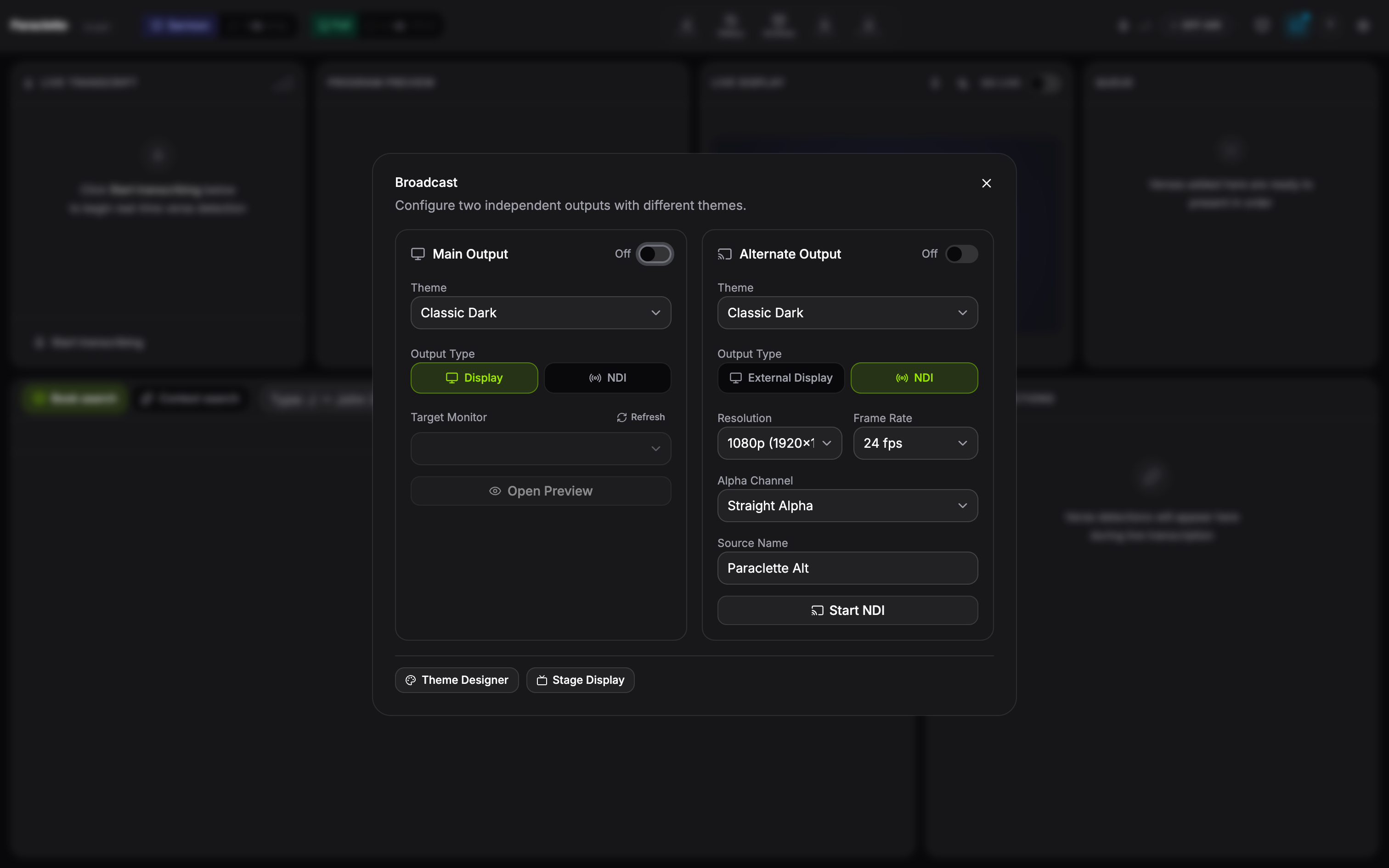
Paraclette can drive your congregation’s screens several ways — use whichever fits your setup.
Output methods
🖥 Broadcast Window
A dedicated full-screen window you drag onto a second monitor or projector. The simplest setup — no extra software.
🎬 Stage Display Multi-Campus+
An independent window with its own content — ideal for a confidence monitor or a separate stage feed.
📡 NDI Output
Send verses over your network straight into ProPresenter, vMix, OBS, or any NDI-capable switcher.
🔻 Lower-Third Overlay Multi-Campus+
A bottom-strip caption with transparent / chroma-key background to composite over live video in OBS or vMix.
Live controls
- Blackout — an instant cut: it clears the verse, background images, and animated or video backgrounds together, and never plays a transition, no matter what motion the current theme uses. Your queue is untouched, so you pick up exactly where you left off.
- Pin — keep a verse on screen so a new detection doesn’t replace it until you’re ready.
- Lower-third toggle — switch between full-screen verses and a lower-third caption on the fly.
- Broadcast Alerts — fire an attention message to the congregation screen (e.g. “Please silence your phones”). Compose it and press ⌘ ↵ to send immediately.
On a transparent lower-third theme, Blackout removes the overlay instead of filling the screen black — so a keyed program feed behind it keeps running. It’s also safe to trigger while the Theme Designer is open.
Theme Designer
Open the visual Theme Designer from Settings → Display to control exactly how verses look — fonts, colours, gradients, glow, background images, and lower-third styling. Paraclette ships with a collection of designer themes (full-background and lower-third) ready to use.
On the free Plant tier the broadcast output carries a small Paraclette watermark and is limited to 3 built-in themes. Any paid tier removes the watermark and unlocks unlimited custom themes.
Elements mode
For full creative control, switch a theme into elements mode and design on a real canvas instead of a fixed layout — freely position a logo, the live verse text, and decorative shapes, then drag, resize, and reorder them like layers. It’s the easiest way to build a custom lower third that carries your church’s own branding. Start from New → Lower Third (custom elements) (or the Announcement Bar / Speaker Card templates) and add more from the Add content toolbar.
Select several elements at once to move or nudge them together, undo or redo any change with ⌘ Z / ⌘ ⇧ Z, and let guide lines snap things into alignment as you drag. Transparent backgrounds show on a checkerboard while you design, so you can see exactly what will key over your video feed. Elements mode is entirely opt-in — every existing theme keeps working exactly as it always has.
Motion
Paraclette animates how a verse or lyric appears and clears using Motion Packs — named visual identities rather than raw animation settings. Pick one and it drives the entrance, exit, and text reveal everywhere that theme is used; you’re choosing a feel, not configuring keyframes.
| Pack | Feel |
|---|---|
| Classic Worship | Unhurried fades that let the words lead |
| Modern Worship | Soft rise with lines that build in |
| Reverent | Long, still fades and nothing else — for prayer & communion |
| Conference | Crisp, confident, businesslike |
| Youth | Energetic slides with a playful spring |
| Broadcast | Clean lateral pushes, stream-friendly timing |
| LED Wall | Fast plain fades — no motion for walls that ghost |
| Minimal | Barely-there fades, out of the way |
| Cinematic | Long dissolves over living backgrounds |
| Christmas · seasonal | Warm, gentle, candlelit pacing |
| Easter · seasonal | Bright, rising, full of morning |
| Revival | Urgent, rising, momentum-building |
Set a pack on the theme itself from the Motion panel in Theme Designer — search, star favourites, and your recently-used packs surface automatically. Need something a pack doesn’t offer out of the box? Open Customize to adjust type, duration, easing, and direction by hand; an edited pack is labelled (edited) with a one-click Reset to pack.
Individual songs can also carry their own Motion Profile — set a song’s Motion in the lyric panel to Auto (theme) to inherit the theme’s pack, or pick a different pack for that song alone. Paraclette can suggest one based on the song’s tags and tempo (always showing its reasoning, and only applied when you tap it), and packs automatically pace themselves faster or slower to match each song’s BPM and ease differently on choruses, bridges, and intros.
Every pack paces itself automatically by section and tempo — a driving praise song won’t animate like a slow hymn even on the same pack, with no manual authoring needed.
Motion per output
Each output in the Broadcast dialog has its own Motion setting, which acts as a ceiling on top of whatever the theme or song produces:
| Setting | What it does |
|---|---|
| Theme’s own transitions | Plays whatever the theme, pack, or song Motion Profile resolves to. |
| Minimal fade (250ms) | Overrides everything with a short fade only — good for a livestream or NDI feed you don’t want carrying your front-of-house theme’s full motion. |
| Instant cuts (no motion) | No animation at all — typically what a confidence monitor or Stage Display wants. |
Outputs never change which motion plays, only how much of it gets through — so you set it once per output and every pack automatically respects it. Blackout, as always, stays an instant cut regardless of this setting.