
The Interface at a Glance
Paraclette is built around a single live dashboard. Learn these three regions and you can run a whole service from one screen.
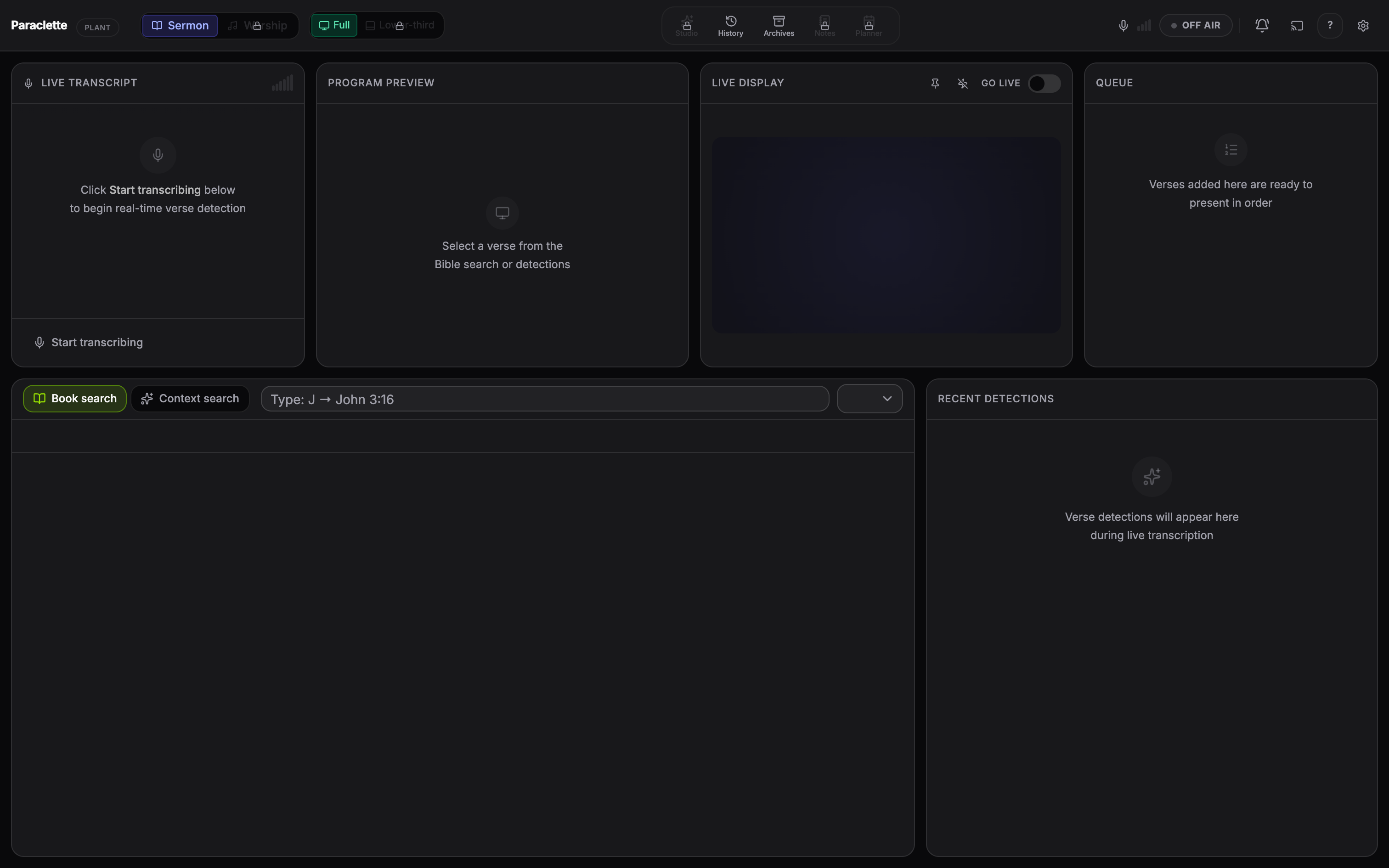
The Transport Bar
The strip across the top is your command center. From left to right:
- Tier badge & live timer — your current plan and how long the current session has been live.
- Mode toggle — switch between Sermon and Worship modes.
- Lower-third toggle — flip the live output between full-screen verse and a bottom-strip “lower third” caption.
- Workspace Dock (center) — five labelled launchers: Studio, History, Archives, Notes, and Planner. Each lights up in its own colour while open.
- Right utility strip — the alert bell (fire a congregation alert), the broadcast / cast control, keyboard-shortcuts help (?), and the settings gear.

The colour language
Paraclette uses consistent colours so you can read the screen at a glance, even from across the booth:
| Colour | Means |
|---|---|
| Emerald | Live / cloud engine active / a confident detection |
| Amber | Scripture references / local-engine fallback |
| Blue | Analytics & semantic-AI features |
| Crimson | The REC dot, blackout, alerts, and delete actions |
The panels
The main area shows the working panels for the current mode. In Sermon Mode:
📝 Transcript
The live, scrolling transcript of what’s being said.
🔍 Preview
Stage the next verse before it goes live to your congregation.
📺 Live Output
Exactly what your audience sees right now.
📋 Queue
Verses lined up to show next — auto-filled by detection.
📖 Search
Manually look up any verse or passage instantly.
🎯 Detections
The live feed of verses the AI has caught, with confidence colours.
In Worship Mode, the Search and some sermon panels are replaced by the Song Library and Lyric Control panels.